Project Application
Last update: October 22, 2024
Logging in to the Application Portal
- Open your web browser and access
Application Portal. - Enter your Portal Account and its password to log in.
- The Portal Account is the account that begins with “ap”.
- Enter the one-time password when prompted.
Project Application Procedures
-
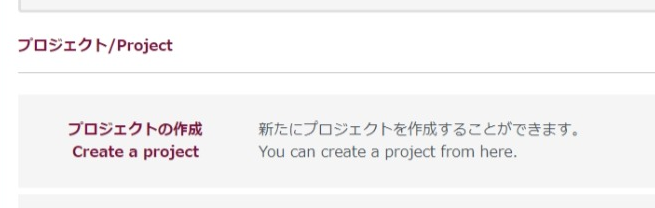
Click on "Create a project".
-
Fill in the required information
-
"Application information"
Enter the project information (research field code, period of use, and amount of resources requested).- Select "Research field code" from the "Research field code list"

- Enter the start and end months for the "Storage available term"

- Select "Research field code" from the "Research field code list"
-
"Budget manager"
Enter the information of the person responsible for payment (the person responsible for payment of usage fees). -
"Accounting manager"
Enter the information of the person in charge of accounting (the person in charge of accounting who pays the usage fees).- If the person responsible for the payment is affiliated with Kyushu University
- Select from the drop-down list

- Select from the drop-down list
- If the person responsible for the payment is affiliated with an organization other than Kyushu University
- Fill in the required information
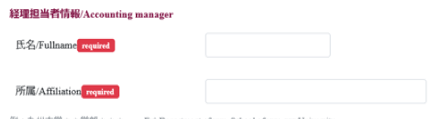
- Fill in the required information
- If the person responsible for the payment is affiliated with Kyushu University
-
Click "Confirm" to apply.
Click the "Confirm" button below the invoice amount displayed at the bottom of the page to submit the application.
When an application is submitted, the payment manager and the accountant are automatically notified by e-mail that the application has been submitted.
During the trial period from July to September 2024, no usage fees will be charged, so no email notifications will be sent to payment managers or accounting personnel. -
The application completion page appears

-
In the "Announcements/News" column at the top of the top page, the message "Project registration accepted." message appears
