How to log in from Windows
Last update: July 8, 2024
This page introduces the login method with MobaXterm. This setting assumes that MobaXterm has been installed beforehand. Please refer to here for installation instructions.
If you are using TeraTerm or PuTTY, please login with the host name as genkai.hpc.kyushu-u.ac.jp, enter the supercomputer account as the user name, and enter the private key corresponding to the public key you have registered.
Preparation
Registering a private key to MobaXterm
Follow the steps below to register the private key to be used when logging in to Genkai via SSH in MobaXterm.
- Start MobaXterm, click “Settings”, then click “SSH”.
- Select ‘Use Internal SSH Agent “MobAgent”’ in “SSH agents”.
- In “Load following keys in MobAgent”, click “+” on the right and select your private key.
- Restart MobaXterm (from now on, enter the private key passphrase when starting MobaXterm).

Register the login node of Genkai as a connection destination
Follow the steps below to register the Genkai login node as a connection destination for MobaXterm.
- Click on the “Sessions” icon in MobaXterm.
- Click “SSH”.
- Enter
genkai.hpc.kyushu-u.ac.jpin the Remote host field. - Check the box to the left of Specify username and enter your Genkai supercomputer account in the text field on the right.
- Click “OK” and confirm that you can log in.
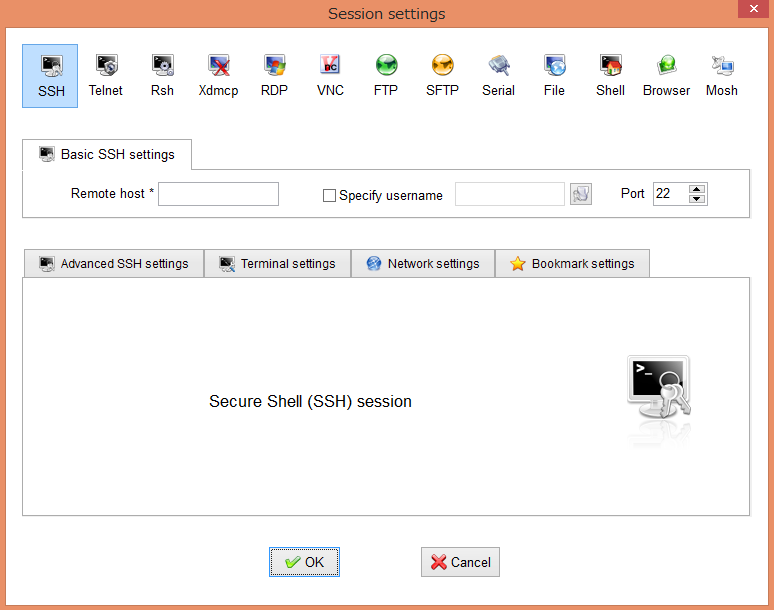
SSH login with MobaXterm
- Start MobaXterm and double-click
genkai.hpc.kyushu-u.ac.jp (supercomputer account)from “Sessions”. - If the prompt
[supercomputer_account@genkai0001 ~]$is displayed, the login is successful.